Accessing the Cluster
In this section:
GridUnesp runs on the Linux operating system and allows remote access via secure SSH (Secure Shell) connection. This section explains how to establish this connection from different operating systems.
Important
The server access.grid.unesp.br is exclusively for:
Accessing your account
Preparing scripts and files
Submitting jobs with
sbatch
DO NOT run simulations on this server. Jobs must be submitted for execution on the processing nodes.
Access via Linux/Unix/macOS
On Unix-based systems (Linux, macOS), use the terminal:
ssh your_username@access.grid.unesp.br
Replace your_username with the login chosen during registration (see Registration).
Access via Microsoft Windows
On Windows, you need to install an SSH client. We recommend:
PuTTY Configuration
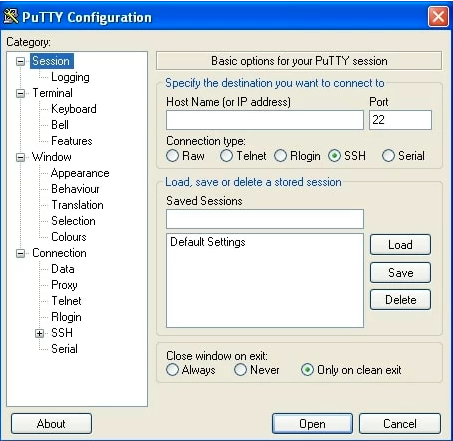
Fill in the fields:
Host Name:
access.grid.unesp.brPort:
22Connection type:
SSH
Click Open. A terminal window will open asking for your login and password.
WinSCP Configuration
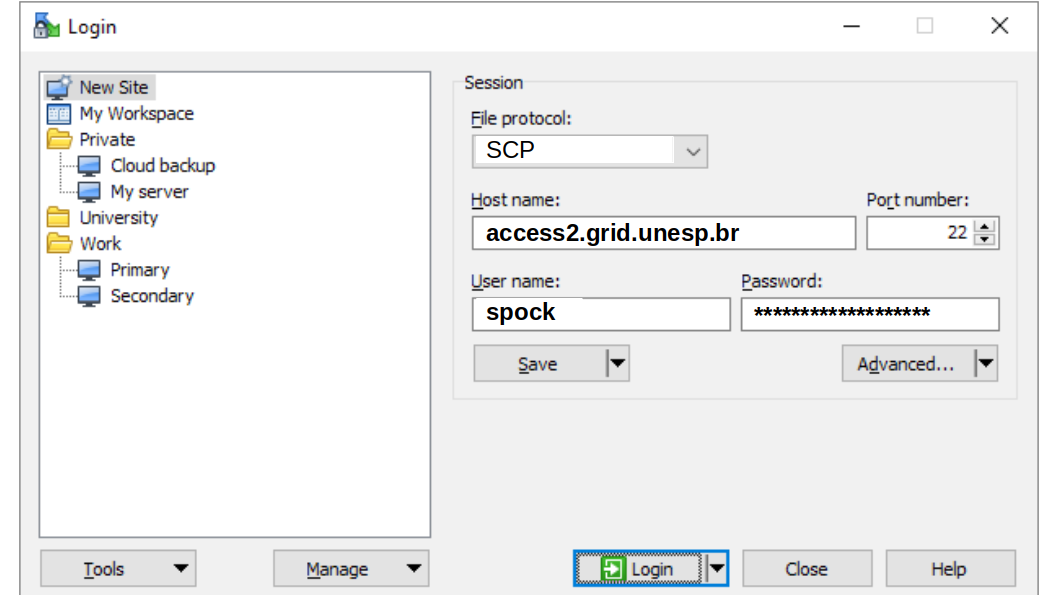
Fill in the fields:
File protocol:
SCPHost name:
access.grid.unesp.brPort number:
22User name: Your GridUnesp login
Password: Your GridUnesp password
Click Login. The interface will show:
Left side: your local computer
Right side: your
/home/directory on GridUnesp
To open the terminal, click the black square icon in the top toolbar.
Security Confirmation
First Access
When connecting for the first time, the SSH client will display a message similar to:
The authenticity of host 'access.grid.unesp.br (200.145.46.48)' can't be established.
ED25519 key fingerprint is SHA256:+HEvFMmo0EA6ipPMJSaj5+Q6IabebRN+nRD0nxdYrKQ.
Are you sure you want to continue connecting (yes/no)?
Verify that the fingerprint matches one of the fingerprints below:
RSA:     SHA256:X3iCb13fWj7u2Tvp/MCCpn0brfSNS5Ie6ehm6lsvPSQ
ECDSA:   SHA256:WVFokXOLnuH9+2e7xxRU2gp7XJqxwuE6H8bbUMqTCXo
ED25519: SHA256:+HEvFMmo0EA6ipPMJSaj5+Q6IabebRN+nRD0nxdYrKQ
If it matches, type yes and press Enter.
Tip
To verify the keys at any time:
ssh-keyscan access.grid.unesp.br | ssh-keygen -lf -
Server Key Change
If you have not accessed the cluster in a long time, you may encounter an error like:
@@@@@@@@@@@@@@@@@@@@@@@@@@@@@@@@@@@@@@@@@@@@@@@@@@@@@@@@@@@
@    WARNING: REMOTE HOST IDENTIFICATION HAS CHANGED!     @
@@@@@@@@@@@@@@@@@@@@@@@@@@@@@@@@@@@@@@@@@@@@@@@@@@@@@@@@@@@
This happens when the server key changes (for example, after maintenance). To resolve it:
On Linux:
ssh-keygen -f "/home/your_local_user/.ssh/known_hosts" -R "access.grid.unesp.br"
On Mac:
ssh-keygen -f "/Users/your_local_user/.ssh/known_hosts" -R "access.grid.unesp.br"
Warning
your_local_user is the login on your personal computer, not your GridUnesp login.
After removing the old entry, try connecting again.
Access Troubleshooting
Connection Refused
ssh: connect to host access.grid.unesp.br port 22: Connection refused
Likely cause: Blocked by the Fail2Ban system after multiple attempts with incorrect passwords or excessive SCP use. Check details on the section User Lockout (Fail2Ban).
Solution: Wait 15 minutes and try again.
Permission Denied
Permission denied, please try again.
Possible causes:
Incorrect password
Incorrect username
Locked account
Solutions:
Verify that the username is correct
If you forgot your password, reset it at: https://www.ncc.unesp.br/password-new/
If the problem persists, contact support (
support.ncc@unesp.br)
See also
Registration - How to create your account
Security - Security procedures
Troubleshooting - Other access problems